

Begin Monitoring
your vision health today.
Quick Start Guide
Put on glasses or readers if needed.
Ensure your face is well-lit with soft, even lighting—avoid harsh shadows.
Position your iPhone or iPad about 15 inches away from your face. You’ll need both hands for these assessments!
Make sure no other person or face is in the line of sight of the camera. This will ensure the distance monitoring works properly. Be sure to check the background or anyone standing nearby.
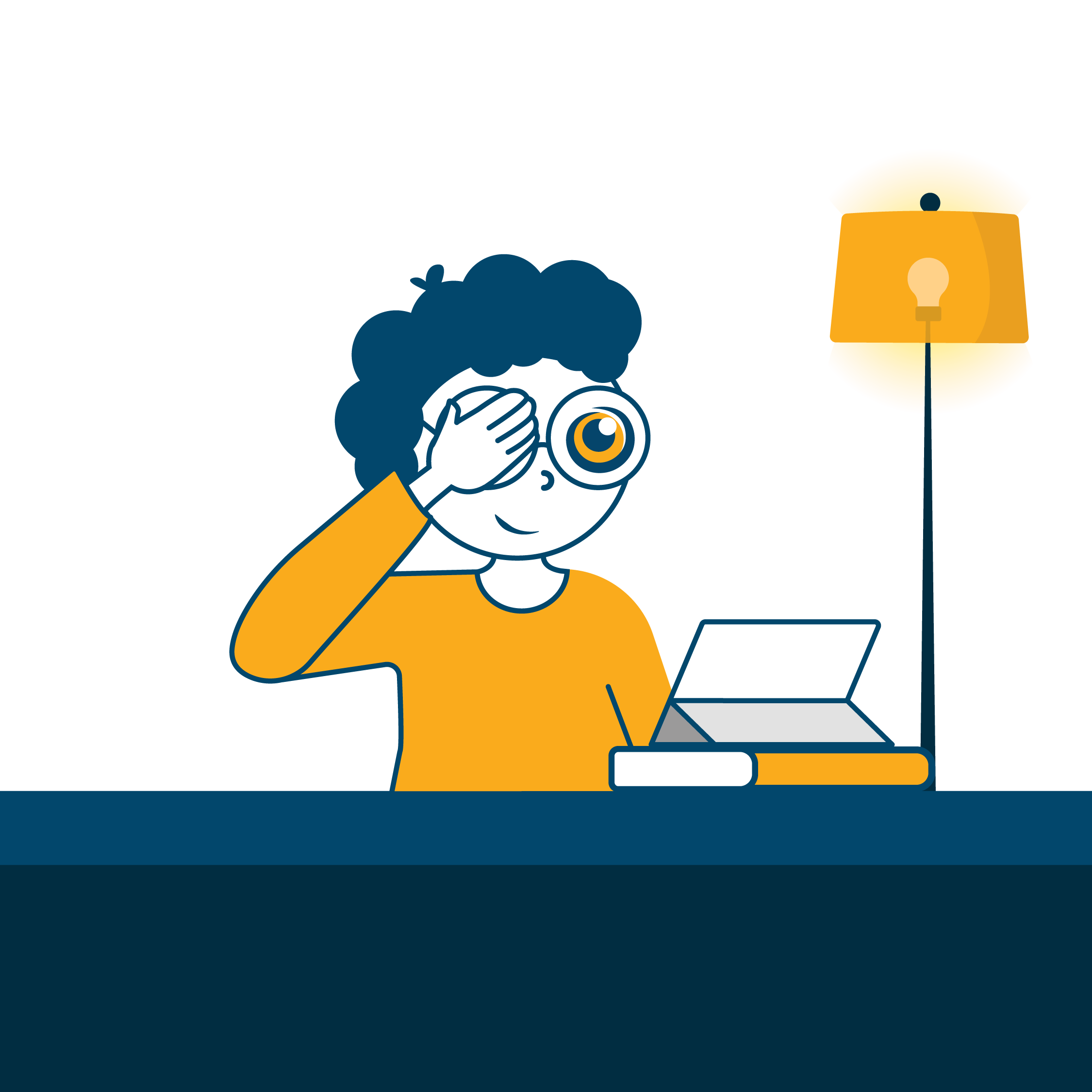
Cover only one eye at a time—use high elbows to help keep your face in view.
Follow the on-screen instructions.
If you don’t see any distortions, tap the "Next" button to move on.
If you do see distortions, trace the affected area while keeping your eye on the dot, then tap "Next."
Complete all 4 assessments and tap "Done" when finished.
If you see distortions, share your results with your eye doctor.
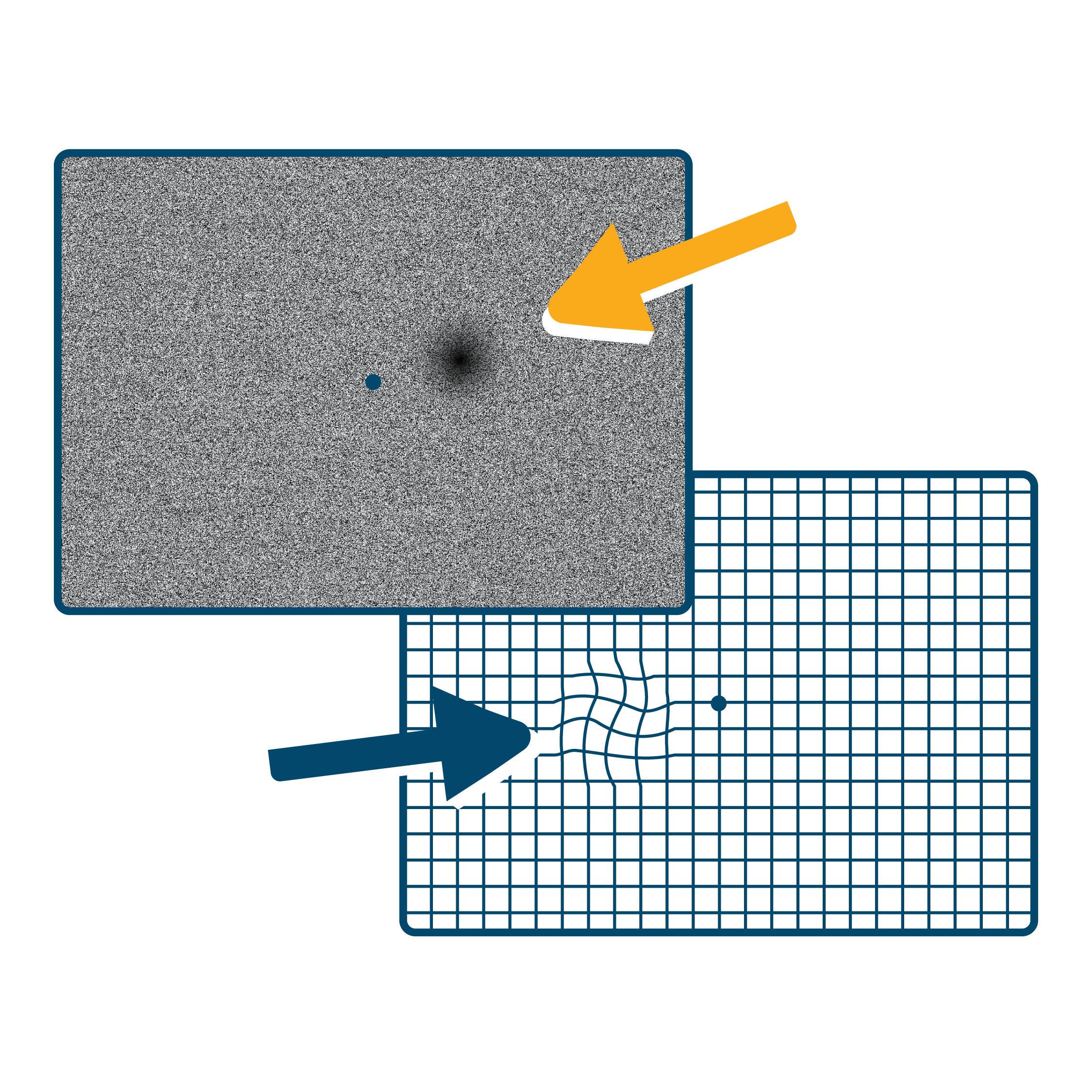
Distortions may look like fuzzy blobs, wavy or broken lines.

Important: If you notice sudden changes in your vision from one day to the next, contact your eye doctor immediately!
Tips for Success!
Use high elbows to help keep your face in view.
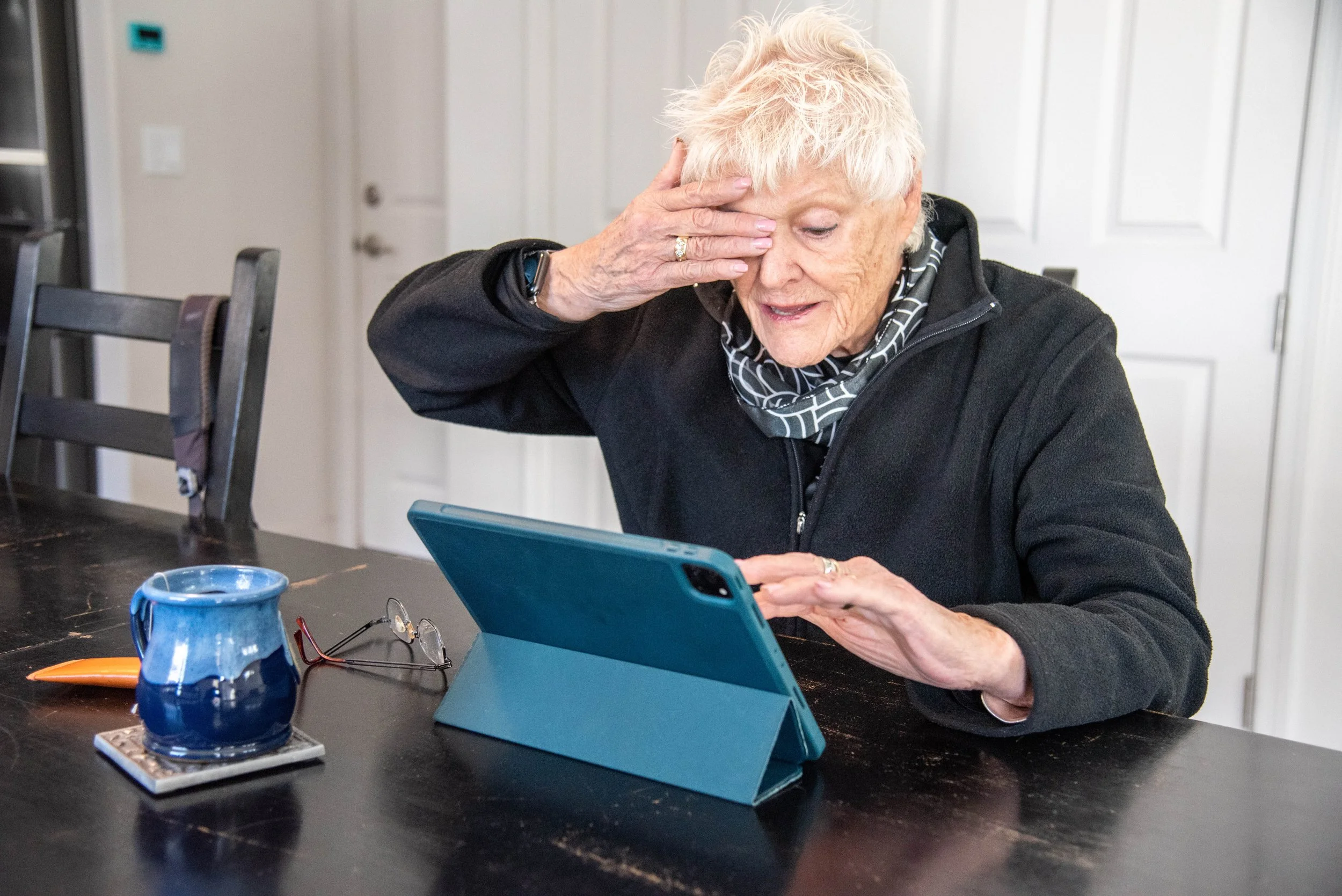
Prop up your device so your hands are free!
Use soft, even lighting
—avoid harsh shadows
FAQ
-
To function correctly, Wise Eyes needs camera access granted. Wise Eyes uses built-in facial recognition features to detect the location of your eyes to help you make sure you are the proper distance away from the screen for an effective assessment.
To make sure the Wise Eyes App has access to your camera. You can search for Wise Eyes in your device’s settings to check. -
No, Newer iDevices have facial recognition built in. Wise Eyes uses this feature to help measure the distance of your eyes from the screen.
-
With an affordable subscription, assessments are saved locally and do not sync between devices on the same account. You can review your locally saved results by selecting “view results” from the app home screen.
Bring your device to your next vision appointment to show your Doctor the results.
-
This could be one of two things:
Too much movement from the user.
Make sure you are wearing any corrective lenses you may need. We’ve noticed that users tend to slightly lean in or away when they are not wearing their lenses.
Distance monitoring malfunction.
Exit out of the app, closing it completely, and ensure no other faces are visible to the camera when performing the Amsler or static field. Even a person standing slightly off to the side or in the background can disrupt the Apple camera system.
If the issue persists, please contact us.